Projects
Your board, joined up with your files.
A simple board of cards that you move from To do to Doing to Done. The difference is underneath: your project board is connected to its files across every drive and every cloud account you own.
Where this stands today
The board itself — the columns you drag cards between — is still being finished, so there is no board screen to show here yet. The part underneath it, the piece that connects a task to its real files, is already built and working. That is what the screens below show: real screens from the app, not a drawing of an idea.
Every task card knows its files
Attach a folder to a task, once
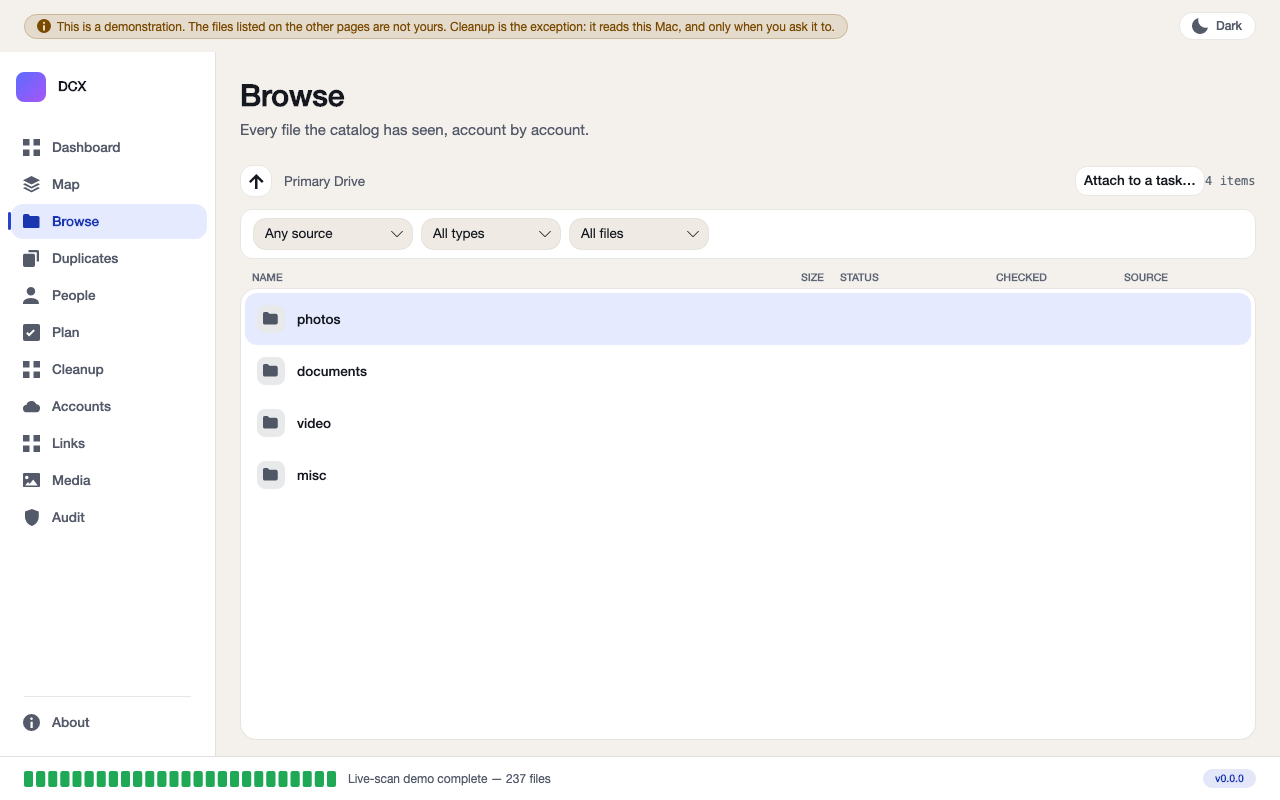
Open the Browse screen, pick a folder, and attach it to a task on your board. From then on, that task carries a live Files line — showing how many files are behind it and how much space they use — without you re-typing a path or hunting for the folder again.
- Point-and-attach, not typing a path. Pick the folder on the Browse screen you already use for everything else, and click “Attach to a task…”.
- The card never stores file names or paths — only a count and a size. Open the card and it hands you straight to the real files, on whichever drive or account they live on.
- Works with the Drive app you already scanned. No second scan, no separate catalog — Projects reads the same picture the Map and Duplicates screens use.
The live-count story
A real example: 214 files, 1.2 GB, one card
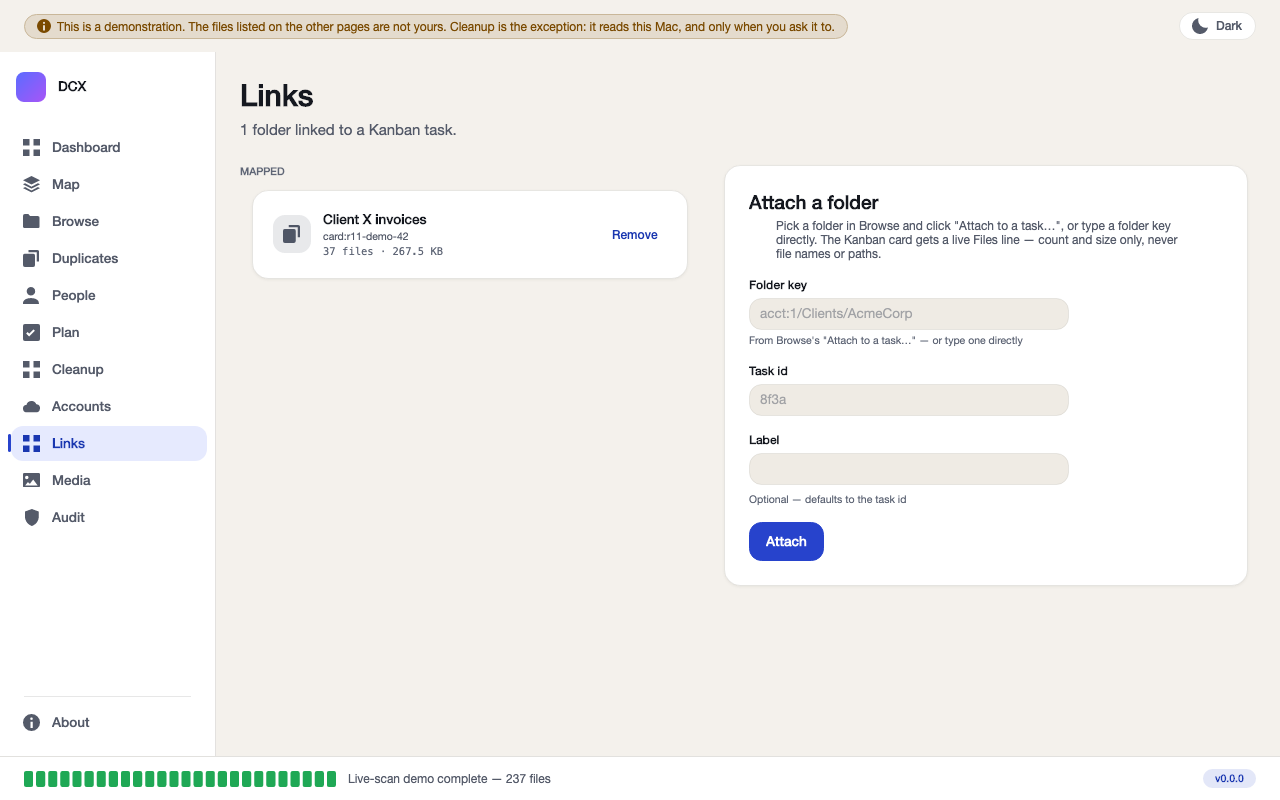
Once a folder is attached, the task card carries a live line under its title — for example, one real test card reads “Client X invoices · 214 files · 1.2 GB”. That number is not typed in by hand and it does not go stale: it is read fresh from the same catalog the rest of the app uses, so if the folder grows, the card’s count grows with it.
- No more hunting in six places for the folder that belongs to the work you are doing today — the number on the card tells you it is there before you even open it.
- One folder, one task, plainly shown — you can remove the link at any time from the same screen you attached it on.
- Nothing is duplicated or moved to make this work. The files stay exactly where they already are.
The board, and scans that run on their own
The drag-and-drop board of cards is the next piece to land. Alongside it: scans that run quietly in the background, so the picture behind your cards is already up to date when you open the app — and a proper program remover, with the same show-the-list-first safety as everything else here.
Both land inside the same price. You will not be asked for more money when they arrive.